Browser Manager
The Browser Manager window will deal with the Playwright-managed Chromium browser for you.
It shows the current Chromium executable path IntenseRP will use, and gives you quick controls to install, reinstall it cleanly, or remove it entirely.
Stop services first
If the API/browser services are already running, Browser Manager will block changes and ask you to stop everything from the main window first.
Why not just install once and forget about it?
Recently an issue has come up where a WAF (Web Application Firewall) on some providers (GLM and Qwen so far) blocks the installed Playwright browser from using them (perhaps due to it being outdated, or just a weird quirk of the WAF). The resolution to that issue was to reinstall the browser, which made it work again. The Browser Manager essentially gives you the tools to do exactly that, without needing to mess with command lines or hidden folders.
How to open it
From the main window:
- Click Tools
- Click Browser Manager
What it shows
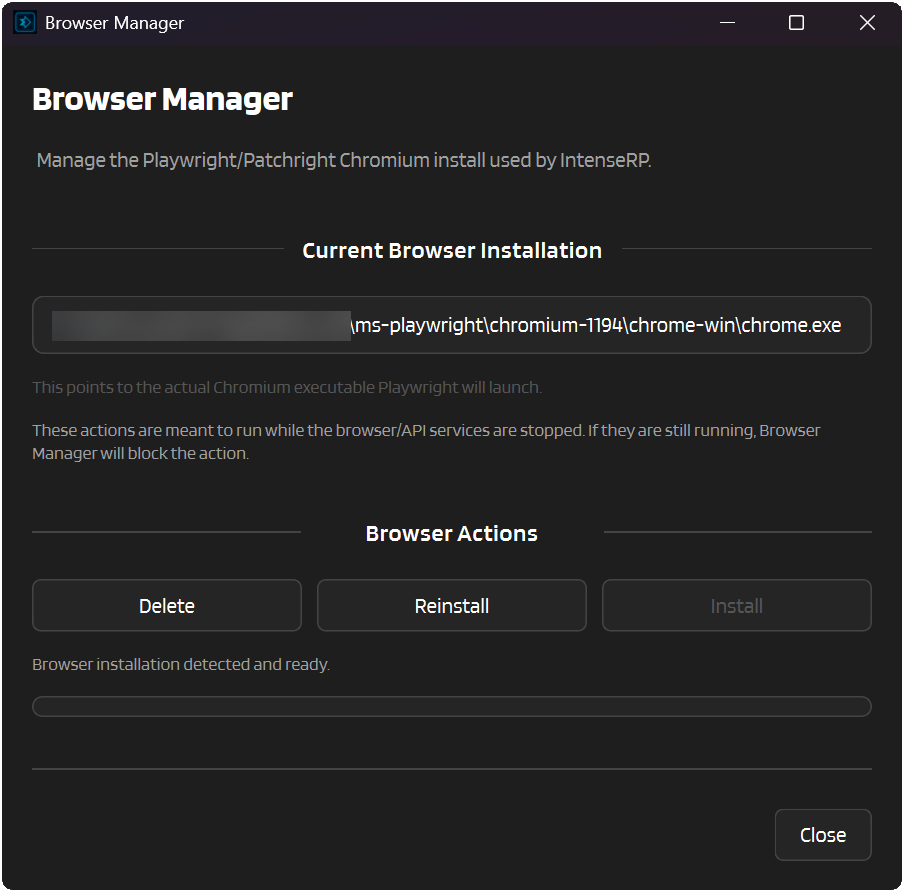
At the top, you get the current browser executable path. If Chromium is already installed, that path points directly to the Playwright/Patchright executable IntenseRP launches. If nothing is installed yet, the window tells you that too.
Actions
Install
Appears when no browser installation is currently detected.
Browser Manager installs the Chromium bundle IntenseRP needs, then refreshes the status/path right away.
If the official download CDN is blocked for you, set Settings -> Browser & Runtime -> Browser Installation -> Chromium Download Mirror first, then come back here and click Install.
Reinstall
Removes the current browser installation, downloads a fresh one, then refreshes the path.
This is handy when the browser install got corrupted, half-updated, or outdated.
Reinstall uses the same Chromium Download Mirror setting when one is configured.
Delete
Removes the local Playwright browser installation used by IntenseRP.
You can always come back later and click Install again.