Backup & Import Settings
This window is for making a quick .zip backup of your current IntenseRP Next v2 config directory, or restoring one later.
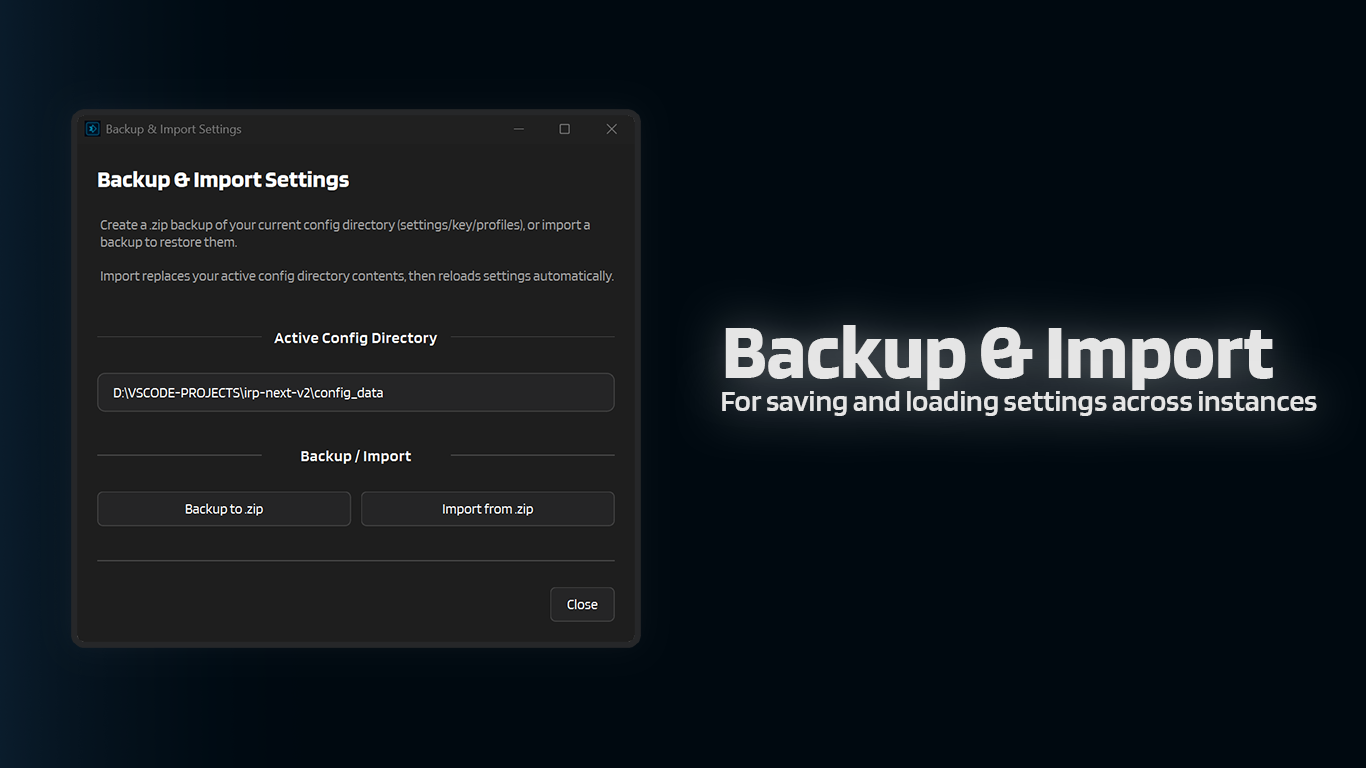
How to open it
- Open Help & Extras
- Click Backup / Import Settings
What gets backed up
The backup is made from your active config directory (shown at the top of the window). By default, it includes everything useful for restoring the app:
settings.json.enc(your encrypted settings)settings.key(the encryption key for your settings)appflags.json.encand other small state filesplaywright_profiles/(used for Persistent Sessions)accounts/(Saved Accounts credentials and usage state)
Browser profiles include the important durable parts, like cookies, local storage, IndexedDB, and preferences. Disposable Chromium cache folders are skipped because they can get huge, locked, or long enough to make Windows throw path length errors (like WinError 206 and subsequently WinError 3). Chromium recreates those caches when it needs them.
Tip: stop services for a cleaner backup
If the browser/services are running, some profile files can be in use. For the most complete backup, click Stop in the main window first.
Customize
Click Customize to choose what Backup and Import should use:
- Settings & State keeps your settings, app state, small caches, and similar config files.
- Profiles keeps browser profile data used by Persistent Sessions.
- Credentials keeps Saved Accounts data. Credentials-only backups still include
settings.keyinternally so IntenseRP can safely re-encrypt them during import.
All three are enabled by default. Turning off Profiles can make a backup/import much faster when you only want to carry settings or accounts to another install.
Backup to .zip
- Click Backup to .zip
- Choose where to save the file
- Done
By default, the file name looks like:
intenserp-next-config-backup-YYYYMMDD-HHMMSS.zip
If some files are locked, the backup can still succeed, but it may warn that it skipped files.
Import from .zip
With all Customize options enabled, Import restores a complete backup by replacing the contents of your active config directory, and then reloading settings automatically.
If you turn some options off, Import only updates the selected parts found in the .zip and leaves the rest of your active config directory alone.
If a backup doesn't actually contain an optional selected category, like Profiles or Credentials, Import now uses the safer selective path for the data that exists and leaves that missing local category alone.
It'll tell you what wasn't found instead of treating checked but empty states as a reason to delete local data. (and crashing the app)
- Click Import from .zip
- Select a backup
.zip - Confirm the warning
- Wait for the import to finish
Profiles can be locked
If Persistent Sessions are enabled and the browser/services are running, import can fail because profile files are in use. Stop services first and retry.