Login & Sessions
Managing how you log in to your active provider (DeepSeek / GLM Chat / Moonshot / QwenLM / Perplexity / HuggingChat / Google AI Studio / Xiaomi MiMo) and keeping your session alive between restarts. These two features work together to make your life easier.
Auto Login
If you're tired of typing your password every time, auto-login uses a saved account from Saved Accounts and enters it automatically when the browser opens.
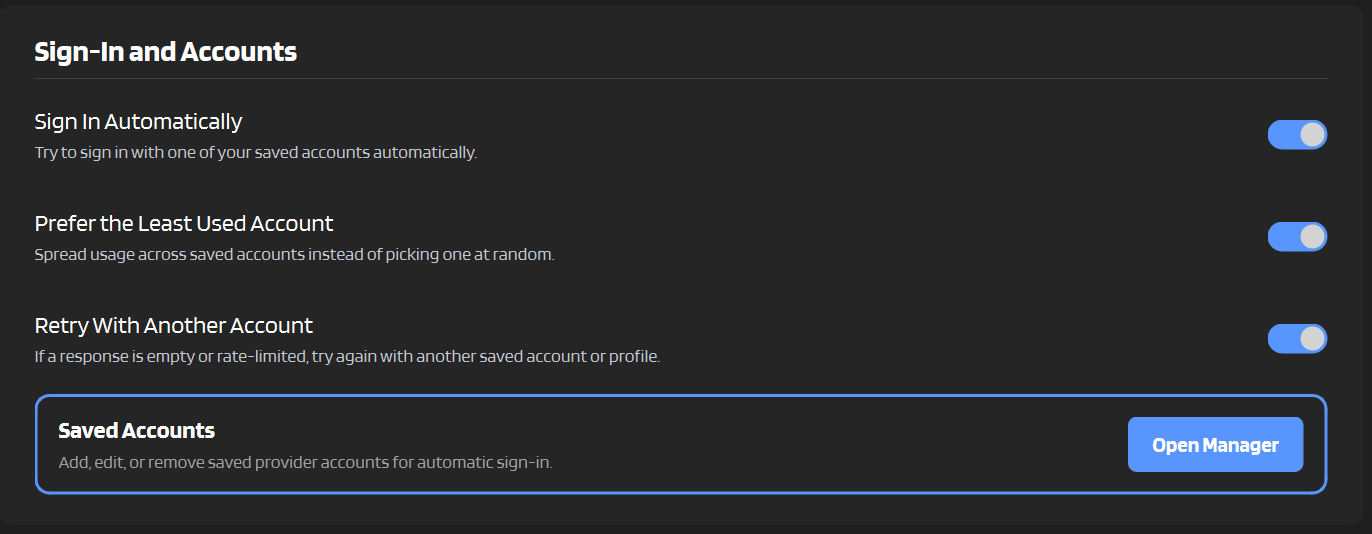
Setting It Up
- Go to Settings → Provider and Login
- In Current Provider, choose your provider
- In Sign-In and Accounts, toggle on Sign In Automatically
- Open Saved Accounts and add an account for your provider
- Click Save
Next time you start IntenseRP, the driver can fill credentials and click login for you.
Multiple accounts / rotation
See Accounts & Credentials for how selection, rotation, and retry-on-failure work.
Want the same startup profile every time?
In Saved Accounts, use the ... menu on a row and click Pin.
That tells IntenseRP to start that specific account/profile on the next normal browser launch instead of picking randomly or by least-used.
GLM CAPTCHA
GLM Chat requires a CAPTCHA during login. Auto Login can fill your credentials, but you still need to solve the CAPTCHA in the browser window. If you don't want to do that every time, enable Persistent Sessions (below).
Moonshot login
Moonshot uses a Google sign-in popup. Auto Login can try to fill the popup automatically, but Google can still require manual confirmation/challenge steps or leave the popup open until you close it yourself.
Google AI Studio login
Google AI Studio also uses Google sign-in. Auto Login can try to fill the Google flow, but Persistent Sessions are strongly recommended because Google may still require manual confirmation.
Perplexity login
Perplexity uses email-code login. Auto Login can enter your email and start the code flow, but you still need to type the 6-digit code in the browser window.
HuggingChat login
HuggingChat uses a Hugging Face username/email and password. If an account hits its monthly credits, disable that row in Credential Manager until the quota resets.
Xiaomi MiMo login
MiMo uses Xiaomi account login. Auto Login can fill the form and agreement checkbox, but regional availability can still block the page before login. If MiMo fails with ERR_CONNECTION_REFUSED, use a permitted network setup or MiMo's proxy setting.
How It Works
When IntenseRP detects you've been redirected to the provider sign-in page:
- It waits for the login form to appear
- Fills in your email and password, or just your email for providers that use email-code login
- Clicks the login button
- Waits for the redirect back to the chat page
If anything goes wrong (wrong password, captcha, etc.), you'll see an error in the console and can log in manually.
Manual Login
If Auto Login is disabled, IntenseRP just waits patiently  for you to log in yourself. Take your time - it won't time out.
Persistent Sessions
This one's even better. Instead of logging in every time (even automatically), Persistent Sessions saves your browser profile so you stay logged in between restarts.
On by default
Persistent Sessions is enabled by default. You don't need to do anything to turn it on.
How It Works
When enabled, IntenseRP uses a "persistent browser context" - basically saving cookies, local storage, and session data to a folder on your computer. Next time you start the app, it loads that profile and you're already logged in.
Settings → Provider and Login → Saved Sessions → Keep Provider Sessions Signed In
Where's the Data Stored?
The browser profile is saved in your config directory (one folder per identity):
The identity is either:
- a hashed email (when an account is selected), or
manual(when no account is selected).
This folder contains your provider session cookies and browser data. It's automatically created when you first enable Persistent Sessions.
Legacy profiles
Older versions stored profiles directly under playwright_profiles/<provider>/. The Settings UI can still list and delete both Legacy and account-based profiles.
GLM recommendation
Persistent Sessions are strongly recommended for GLM Chat, because login requires a CAPTCHA.
Perplexity recommendation
Persistent Sessions are strongly recommended for Perplexity, because they reduce how often you need to go through the email-code step.
Best of Both Worlds
You can use both features together! Enable Persistent Sessions so you're usually already logged in, and keep Auto Login as a backup for when the session expires.
Pin + Persistent Sessions
Pinning works nicely with Persistent Sessions: it makes IntenseRP reopen that account's saved browser profile on startup, which is handy if you want one specific identity to be the default.
Deleting Profiles
If you want to start fresh or log out completely, you can delete a specific saved browser profile (or wipe them all):
- Delete Profile: Settings → Provider and Login → Saved Sessions → Delete Profile (pick one, click Delete)
- Clear All Profiles: Settings → Provider and Login → Saved Sessions → Clear All Profiles
Deleting a profile folder:
- Removes all cookies and session data
- Logs you out (of that provider, or all providers if you clear all)
- Forces a fresh login next time
This Can't Be Undone
Once deleted, you'll need to log in again. If you have Auto Login enabled, this happens automatically. Otherwise, you'll log in manually.
Quick FAQ
Do I need both Auto Login and Persistent Sessions?
Nope! You can use either one:
- Just Auto Login: Logs in fresh every time (slower, but always works)
- Just Persistent Sessions: Stays logged in until the session expires
- Both: Best reliability - persistent session when it works, auto login as fallback
My session keeps expiring?
Provider sessions do expire eventually. If Persistent Sessions isn't keeping you logged in long enough, make sure you also have Auto Login configured as a backup.
Is my password stored securely?
Your credentials are stored locally and encrypted at rest inside your config directory. IntenseRP doesn't send them anywhere except to provider login flows that support credential autofill. If you're concerned, you can skip Auto Login and log in manually each time.
Can I use this with multiple accounts?
Yes. Use Saved Accounts to store multiple accounts per provider and rotate between them. See Accounts & Credentials.