Formatting
When SillyTavern sends messages to IntenseRP, it doesn't just forward them straight to the active provider. Instead, it squishes everything into a single, neatly formatted prompt that the model can understand better. This page explains how that magic works.
Chat route only
This formatting pipeline applies to chat-style requests such as /v1/chat/completions.
If you use the legacy /v1/completions text-completions route, IntenseRP skips templates, injections, and name scanning there and forwards the raw prompt text instead.
The Big Picture
Here's what happens when you send a message:
flowchart LR
    A[SillyTavern Messages] --> B[Name Detection]
    B --> C[Apply Template]
    C --> D[Join with Divider]
    D --> E[Add Injection]
E --> F[Send to Provider]- Name Detection - Figure out who's talking (your character, the AI character, etc.)
- Apply Template - Format each message using your chosen template
- Join with Divider - Combine all messages with a separator (usually a newline)
- Add Injection - Optionally prepend or append extra instructions
- Send to Provider - Off it goes!
Templates
Templates control how each message looks. They use placeholders that get replaced with actual values.
Placeholders
| Placeholder | What It Becomes |
|---|---|
{{name}} |
The character's name (e.g., "Sophie", "Jan") |
{{role}} |
The role type: "User", "Character", or "System" |
{{content}} |
The actual message text |
Example
Let's say you have a message from your character named "Sophie" that says "Hello there!"
With the template {{name}}: {{content}}, it becomes:
With <{{name}}>{{content}}</{{name}}>, it becomes:
Presets
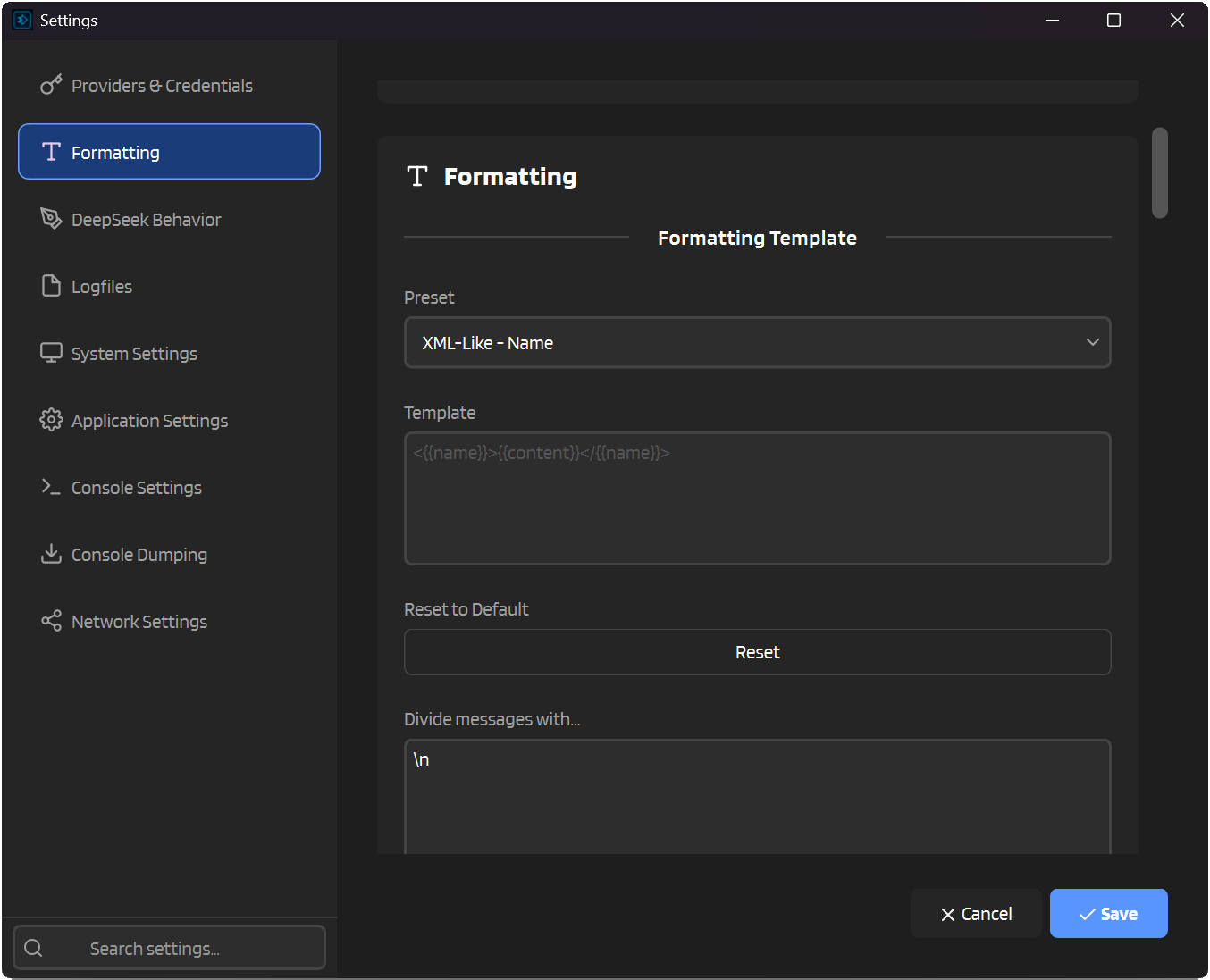
Don't want to write your own template? That's fine! I wouldn't either. IntenseRP comes with several built-in presets you can choose from.
Classic
The default, simple format. Good for most use cases. Originally used by IntenseRP API.
XML-Like
Wraps messages in XML-style tags. Some models respond well to this structured format.
Multiline XML-Like
Almost exactly like XML-Like, but with the content placed between opening and closing tags on separate lines. This also matches the old v1 Wrapped/XML-like preset style.
Divided
Uses markdown-style headers to separate messages. Visually clear and easy to read.
Custom
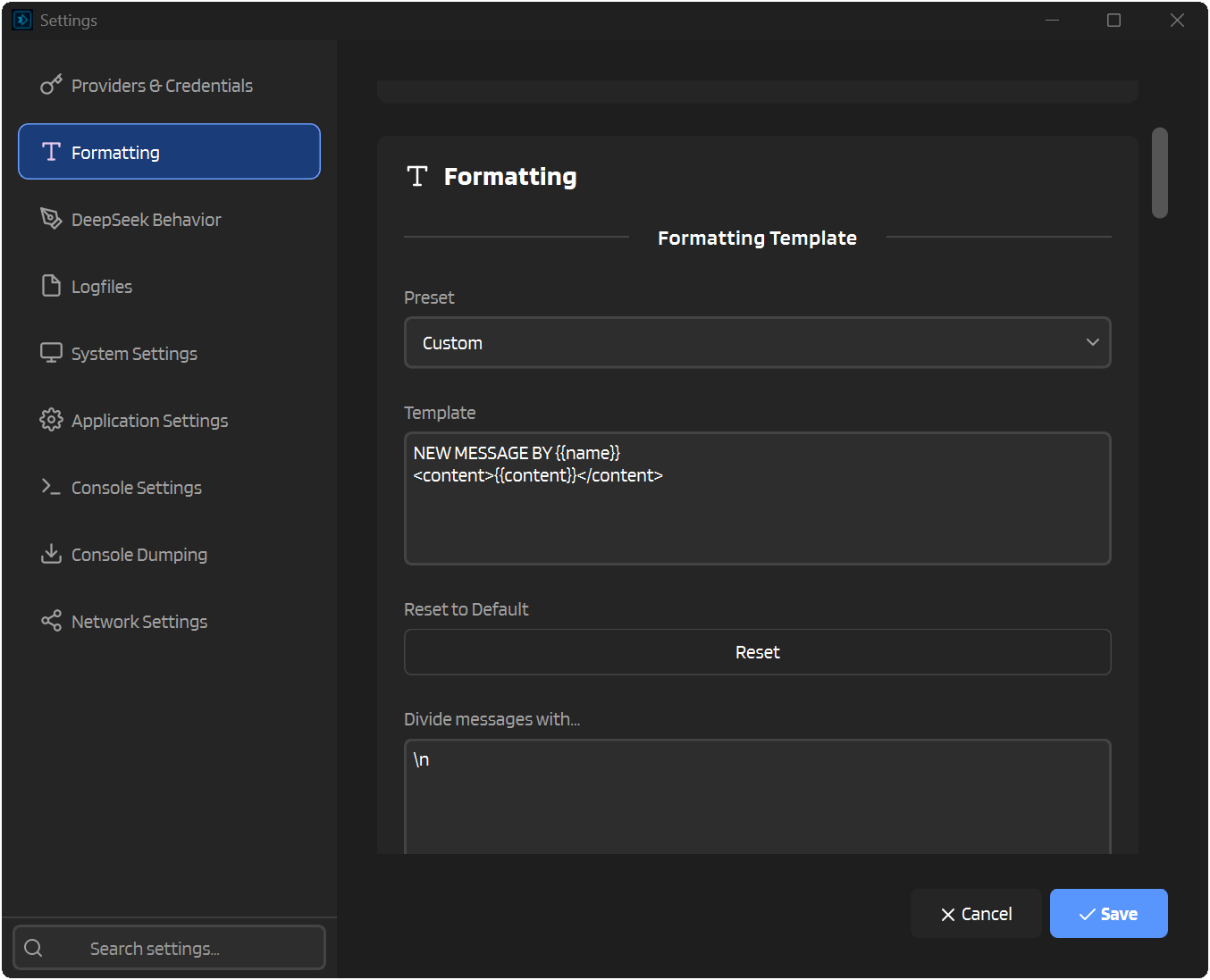
Want to go wild? Select Custom and write your own template. Mix and match placeholders however you like!
Message Divider
The divider is what goes between each formatted message. By default, it's just a newline (\n), but you can change it to anything.
| Divider | Result |
|---|---|
\n (default) |
Messages on separate lines |
\n\n |
Double-spaced messages |
---\n |
Horizontal rules between messages |
|
All messages on one line (chaos mode) |
Escape Sequences
Type \n to insert a newline. It'll be converted to an actual line break when formatting. You can just press Enter in the input box too, if you prefer.
Name Detection
IntenseRP tries to figure out who's who in your conversation. It looks for names in a few different places, depending on what your client sends.
How It Works
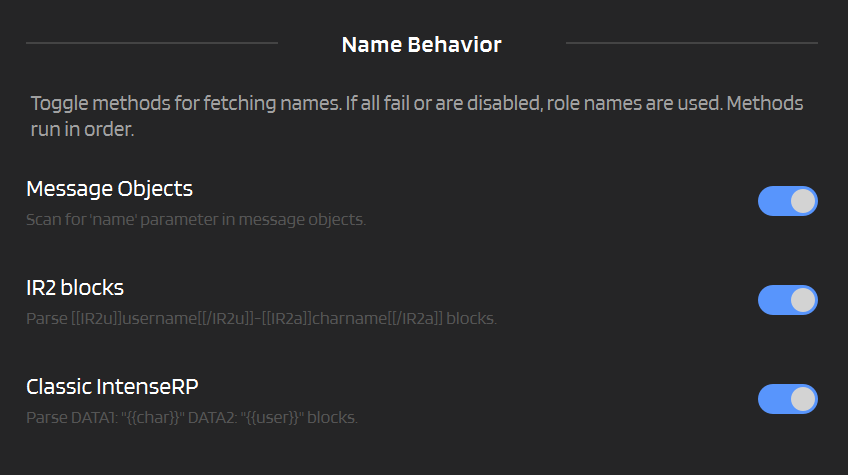
IntenseRP checks these sources in order:
- Message Objects - The
namefield in each message (or legacyirp-nextfor RossAscends's STMP patcher compat) - IR2 Blocks - Special tags in system messages
- Classic IntenseRP - Legacy
DATA1/DATA2format
If none of these work, it falls back to generic names: "User" and "Character".
Message Objects
The OpenAI API format lets you include a name field with each message:
When enabled, IntenseRP reads this name and uses it for {{name}} in your template.
Settings → Formatting → Name Behavior → Message Objects
STMP patcher compatibility (RossAscends's STMP)
If your client (like RossAscends's STMP) sends irp-next instead of name, IntenseRP treats it exactly like name (when Message Objects is enabled).
SillyTavern Setup Required
For SillyTavern to actually send these names, you need to configure it:
SillyTavern → User Settings → Character Names Behavior → Message
Without this, SillyTavern won't include the name field in messages, and IntenseRP won't have anything to detect.
Recommended
Using Message Objects is the most reliable way to pass character names. If your client supports it, always enable this option first.
IR2 Blocks
IR2 (short for "IntenseRP 2") is a simple, machine-readable way to embed character names in system messages. It's not a standard - just something I made up to reliably pass names through:
This tells IntenseRP that the user is "Sophie" and the AI character is "Jan".
Settings → Formatting → Name Behavior → IR2 Blocks
Classic IntenseRP
The original IntenseRP format from way back:
Where DATA1 is the character name and DATA2 is the user name. (Yes, it's backwards. Don't ask.)
Settings → Formatting → Name Behavior → Classic IntenseRP
Priority
Methods are checked in order. If Message Objects finds a name, it won't bother checking IR2 or Classic. You can toggle each method on or off depending on what your client sends.
Injection
Sometimes you want to add a little extra instruction to every prompt, like a reminder to stay in character or follow certain rules. That's what injection does.
How It Works
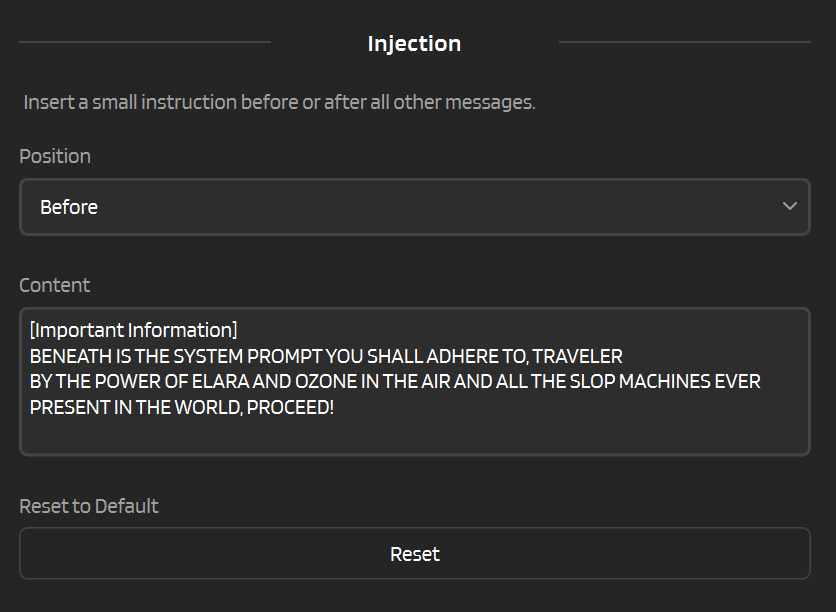
Injection adds your custom text either before or after all other formatted messages.
| Position | Where It Goes |
|---|---|
| Before | At the very beginning of the prompt |
| After | At the very end of the prompt |
Injection placeholders
Injection content supports these placeholders:
| Placeholder | Replaced with |
|---|---|
{{user}} |
Detected user name |
{{char}} |
Detected character name |
The names come from the same Name Detection system (Message Objects, IR2 blocks, or Classic IntenseRP tags).
Example
If your injection content is:
And your position is Before, the final prompt looks like:
Setting It Up
- Choose your Position (Before or After)
- Enter your Content
- Save!
Use Cases
- Add a "jailbreak" or instruction at the start
- Append reminders about formatting or behavior
- Insert context that should always be present
Disabling Formatting
If you want IntenseRP to pass messages through without any formatting, just turn it off:
Settings → Formatting → Apply Formatting → Off
When disabled, messages are formatted as simple role: content pairs:
Quick FAQ
My character names aren't showing up?
Make sure at least one name detection method is enabled. If you're using SillyTavern, check that Character Names Behavior is set to Message in User Settings. Otherwise SillyTavern won't send the names at all.
Can I use multiple lines in my template?
Yes! Use \n for newlines in your template. For example: {{name}}\n{{content}} puts the name on its own line.
What if I just want raw messages?
Turn off Apply Formatting and IntenseRP will pass messages through with minimal processing.
What's the difference between IR2 and Classic IntenseRP?
IR2 is the newer format with XML-like tags ([[IR2u]]...[[/IR2u]]). Classic uses DATA1/DATA2 strings. Both do the same thing - they pass character names - but IR2 is cleaner and less likely to be accidentally parsed as content. It's deliberately designed to be written in a way that absolutely no normal user message would ever contain it.