Getting Started
Let's get IntenseRP installed, connected to a provider, and talking to SillyTavern. This page sticks to the setup path, while deeper provider weirdness gets linked out to the relevant Behavior pages in Providers.
What You'll Need
Before we dive in, make sure you have:
| Windows 10/11 or Linux | 64-bit with a graphical desktop |
| Provider account | DeepSeek, GLM Chat (Z.ai), Kimi, QwenLM, Perplexity, HuggingChat, Google AI Studio, or Xiaomi MiMo. |
| SillyTavern (or similar) | Any OpenAI-compatible client works |
Step 1: Download & Install
Pick your platform and let's go!
- Head to the Releases page
- Grab the latest
intenserp-next-v2-win32-x64.zip - Extract it somewhere you'll remember
- Open the
intense-rp-nextfolder and runintenserp-next-v2.exe

First Time?
The app will download browser components on first launch. Give it a minute!
- Head to the Releases page
- Grab the latest
intenserp-next-v2-linux-x64.tar.gz - Extract and run:
tar -xzf intenserp-next-v2-linux-x64.tar.gz
cd intense-rp-next
chmod +x intenserp-next-v2
./intenserp-next-v2
Missing Libraries?
This sometimes happens, especially if you don't install new software often. You might need to install Qt6 dependencies. The most common ones are: libxcb-cursor0, libegl1, libxkbcommon0.
For developers or those who like living on the edge:
git clone https://github.com/LyubomirT/intense-rp-next.git
cd intense-rp-next

# Create a virtual environment (recommended)
python -m venv venv

source venv/bin/activate  # Linux/Mac
# or: venv\Scripts\activate  # Windows

# Install deps
pip install -r requirements.txt

# Optional, since IntenseRP can auto-download browsers
playwright install chromium

# Run it!
python main.py
Python 3.12+
Make sure you're running Python 3.12 or newer.
Step 2: Provider + Account
Before hitting Start, pick your provider and decide whether IntenseRP should try to sign in for you.
- Click the Settings button
- Go to Provider and Login
- In Current Provider, choose your provider (DeepSeek, GLM Chat, Moonshot, QwenLM, Perplexity, HuggingChat, Google AI Studio, or Xiaomi MiMo)
- In Sign-In and Accounts, (optional) turn on Sign In Automatically
- Open Saved Accounts and add your account(s)
- (Optional) Enable Prefer the Least Used Account and/or Retry With Another Account
- Hit Save
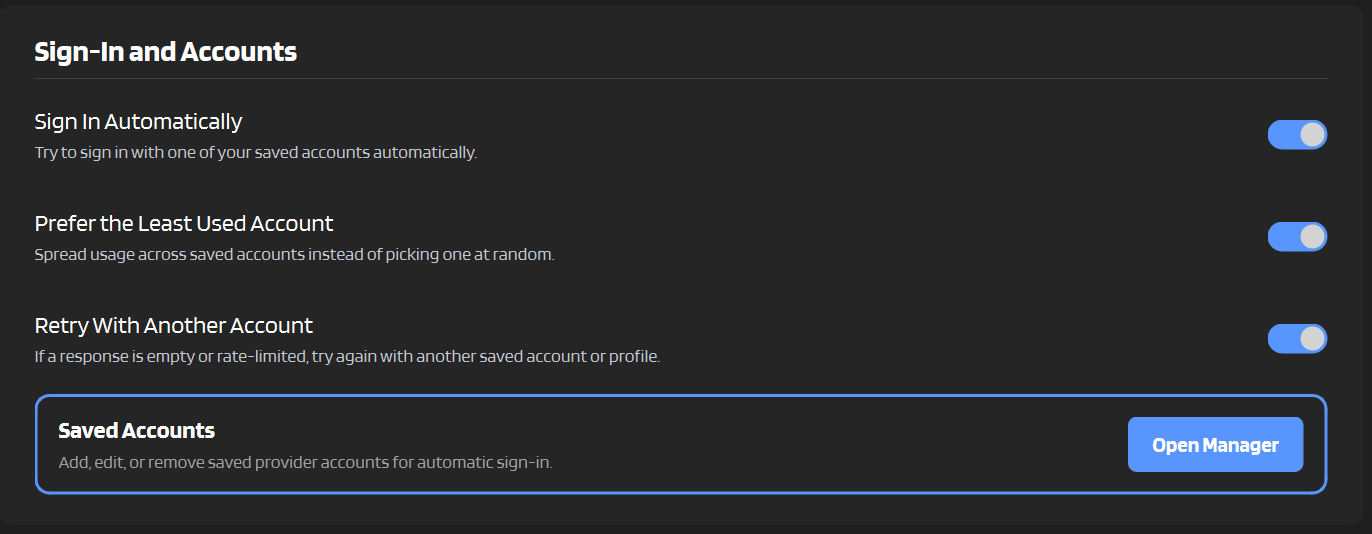
Manual login is fine
You don't have to save credentials if you don't want to. If Sign In Automatically is off, IntenseRP opens the provider browser and waits for you to log in yourself.
Provider login quirks
Some providers still need a human even with Auto Login enabled:
| Provider | What to expect |
|---|---|
| GLM Chat | Auto Login can fill credentials, but you still solve the CAPTCHA. Persistent sessions help a lot. |
| Moonshot / Google AI Studio | Google sign-in may ask for confirmation, 2FA, or manual popup cleanup. |
| Perplexity | Auto Login starts the email-code flow, but you enter the 6-digit code. |
| HuggingChat | Uses Hugging Face credentials; free monthly credits can run out quickly on heavier models. |
| Xiaomi MiMo | Uses Xiaomi account login and may be geoblocked in some regions. If the page refuses the connection, use MiMo's proxy setting or a VPN. |
For the longer version, see Login & Sessions and Providers.
Upgrading?
If you previously saved credentials in older versions, IntenseRP imports them into Saved Accounts on startup.
Step 3: Start the Server
Alright, the fun part!
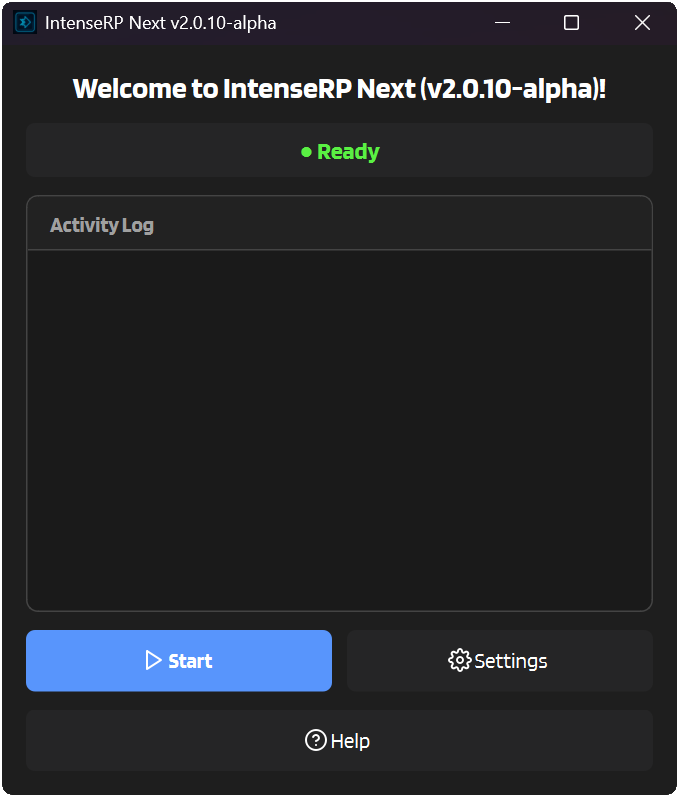
- Click the big Start button
- A browser window will pop up
- All normally selectable providers can use auto-login, though Moonshot and Perplexity may still need manual confirmation in the browser.
- Once logged in, the status changes to Running (Port 7777)
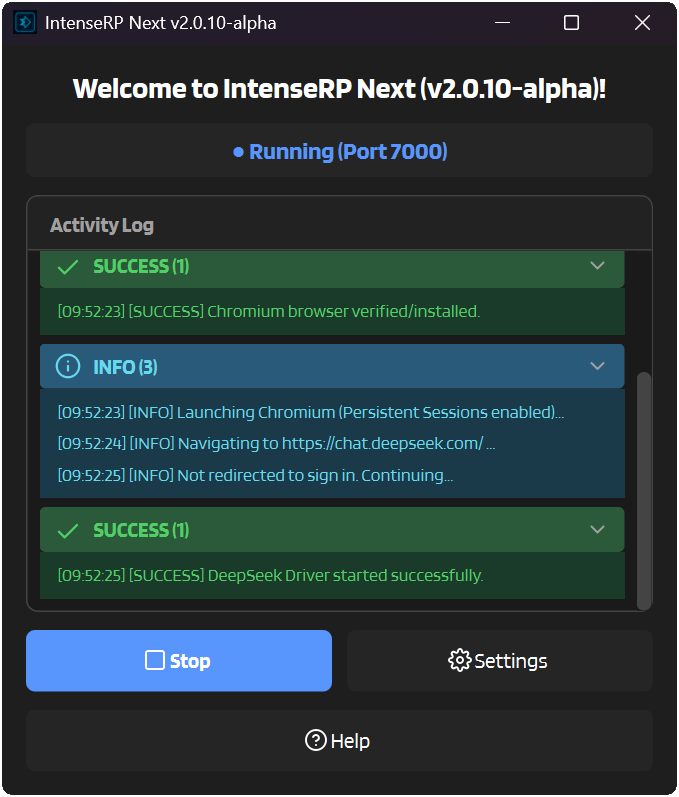
You're Live!
IntenseRP is now running and ready to accept requests.
Step 4: Connect SillyTavern
Now let's hook up SillyTavern to use IntenseRP as its backend.
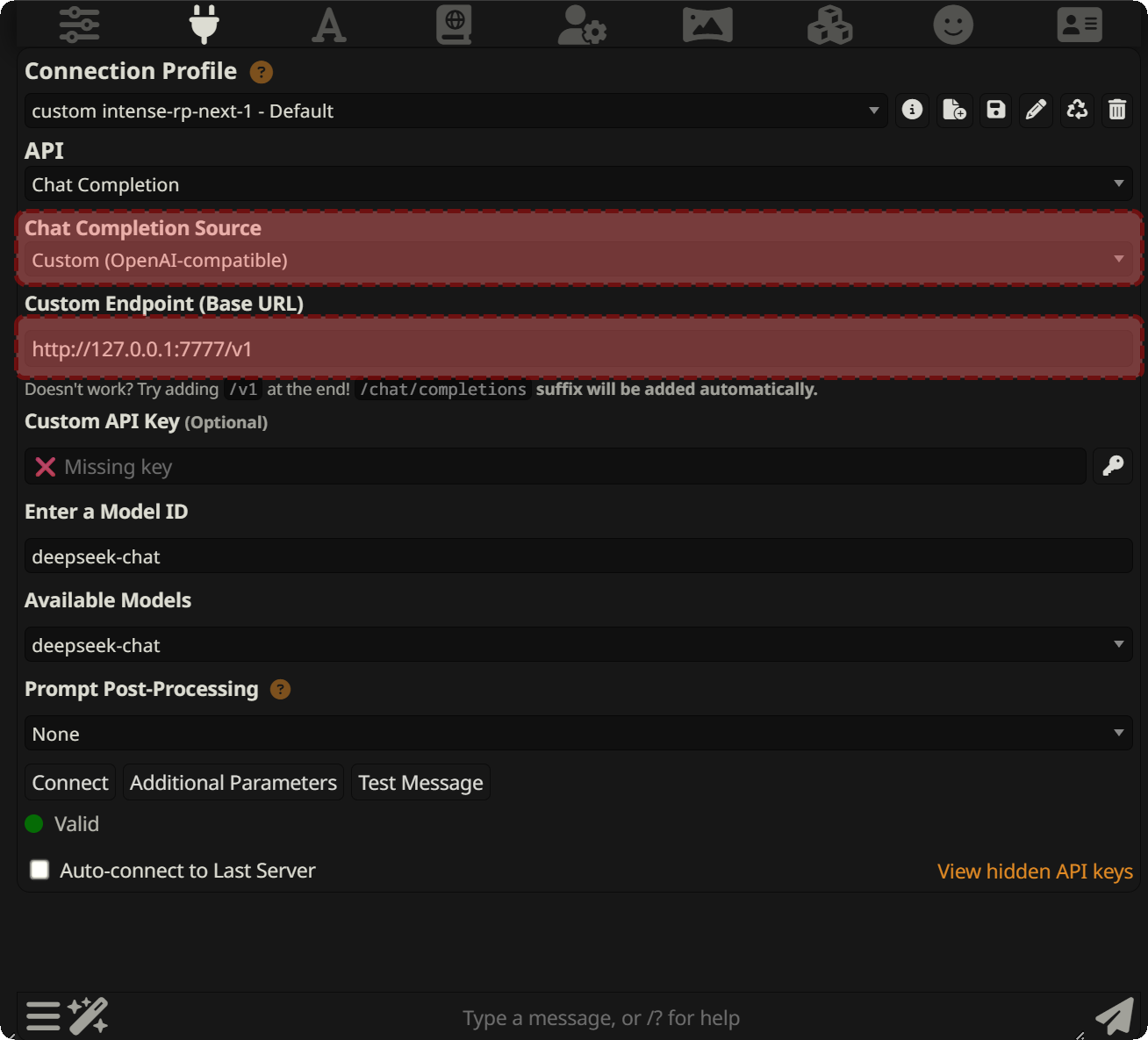
Open API Connections
Click the API button in SillyTavern's top bar.

Pick the Right Settings
| Setting | What to Choose |
|---|---|
| API Type | Chat Completion |
| Chat Completion Source | Custom (OpenAI-compatible) |
Enter the Endpoint
| Field | Value |
|---|---|
| Custom Endpoint | http://127.0.0.1:7777/v1 |
| API Key | Leave blank |
| Model | deepseek-* / glm-* / moonshot-* / qwen-* / perplexity-* / huggingchat-* / aistudio-* / mimo-* |
Model IDs
Use <provider>-auto for your active provider. The current prefixes are deepseek, glm, moonshot, qwen, perplexity, huggingchat, aistudio, and mimo, so GLM uses glm-auto, AI Studio uses aistudio-auto, etc.
*-auto respects your IntenseRP settings. There are also *-chat and *-reasoner variants; for the full behavior reference, see Network & API.
Connect!
Click Connect and look for the green indicator.
You Did It!
Start a chat and enjoy free LLM completions!
Useful First Tweaks
You can ignore these on the first launch, but they are worth knowing about once the basic connection works.
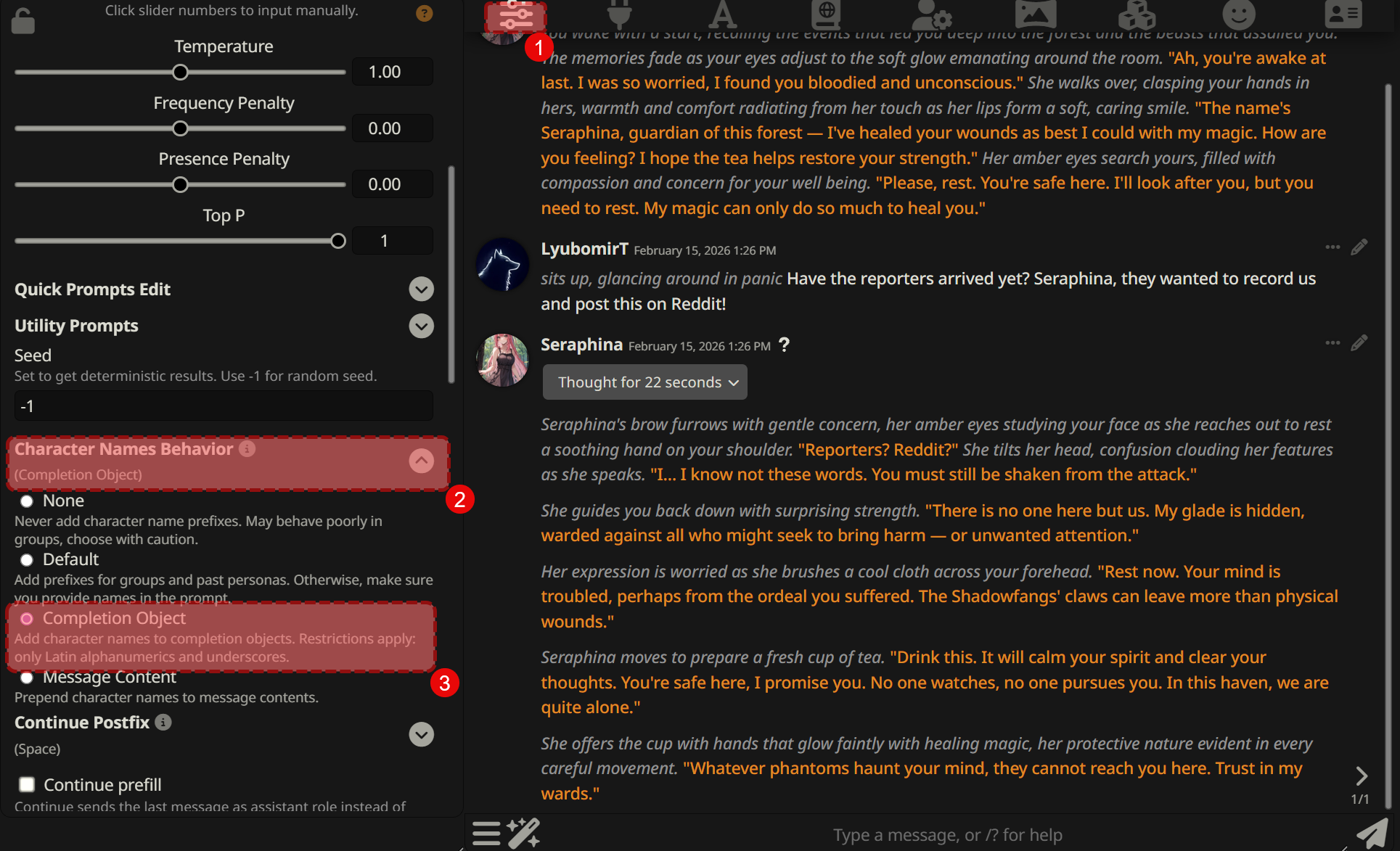
Set up Names
If you want IntenseRP to format messages with the right character and persona names, set SillyTavern to send names in the request.
The recommended way is to set Character Names Behavior to Completion Object. This automatically sends character names to the API with every message, so IntenseRP can use them in formatting and injections.
Change the Port
By default IntenseRP listens on port 7777. If that happens to be taken, you can change it:
Settings → API Server → Access → Server Port
Don't forget to update your SillyTavern endpoint too!
Persistent Sessions
Tired of logging in every time you restart?
Settings → Provider and Login → Saved Sessions → Keep Provider Sessions Signed In
This saves your browser session so you stay logged in unless the provider expires the session or you log out manually.
Reasoning / Thinking
Most providers have some version of reasoning mode. DeepSeek calls it DeepThink, GLM calls it Deep Think, and others use names like Thinking or Thinking Effort.
Settings → Provider Behavior → pick your provider in the selector
The *-auto model IDs respect your provider settings. Where supported, *-reasoner forces reasoning on and *-chat forces it off. See Providers for the exact behavior per provider.
Troubleshooting
If something fails during setup, check these first:
| Problem | Quick check |
|---|---|
| Browser doesn't open | Restart IntenseRP, check antivirus/firewall blocks, and make sure there is enough disk space for the browser install. |
| SillyTavern can't connect | IntenseRP should show Running, the endpoint should use http://, and the port should match. Default: http://127.0.0.1:7777/v1. |
| Login gets stuck | Try manual login once, then enable Keep Provider Sessions Signed In after the provider accepts the session. |
| Provider refuses or blocks a reply | Check that provider's Behavior page; some providers have optional mitigation settings. |
Need more?
See Troubleshooting for the full checklist and bug report tips.