Migration Guide
This page helps you move from:
- IntenseRP Next v1 (by LyubomirT)
- IntenseRP API (by Omega-Slender)
The features are mostly the same, but v2 is a full rewrite with a different structure, config layout, and formatting system. The goal is to get you running on v2 quickly, without losing important behavior.
Manual review is mandatory
Even if migration succeeds, you must manually review your settings (especially Formatting and Injection). v1 used a different placeholder and template structure, and v2 is more standardized.
Before You Start
- Close your old IntenseRP app (v1 / API) so its config files are not being written while you migrate.
- Keep a backup of your old install folder. The migrator does not delete it, but you should still keep a copy.
- Install and run v2 at least once so it creates its v2 config directory.
Where v2 stores settings
v2 stores settings under its config directory (see config_dir.txt next to the app executable). The important files are:
[config_dir]/settings.json.enc[config_dir]/settings.key
Migrating From IntenseRP Next v1
v2 includes a built-in v1 settings migrator. It reads your v1 encrypted config, maps known settings to v2, and saves them into v2.
v1 version requirement
The built-in migrator expects an IntenseRP Next v1 install that uses the save/config.enc + save/secret.key format (v1.5.3+).
Step-by-step
- Open v2
- Click Tools
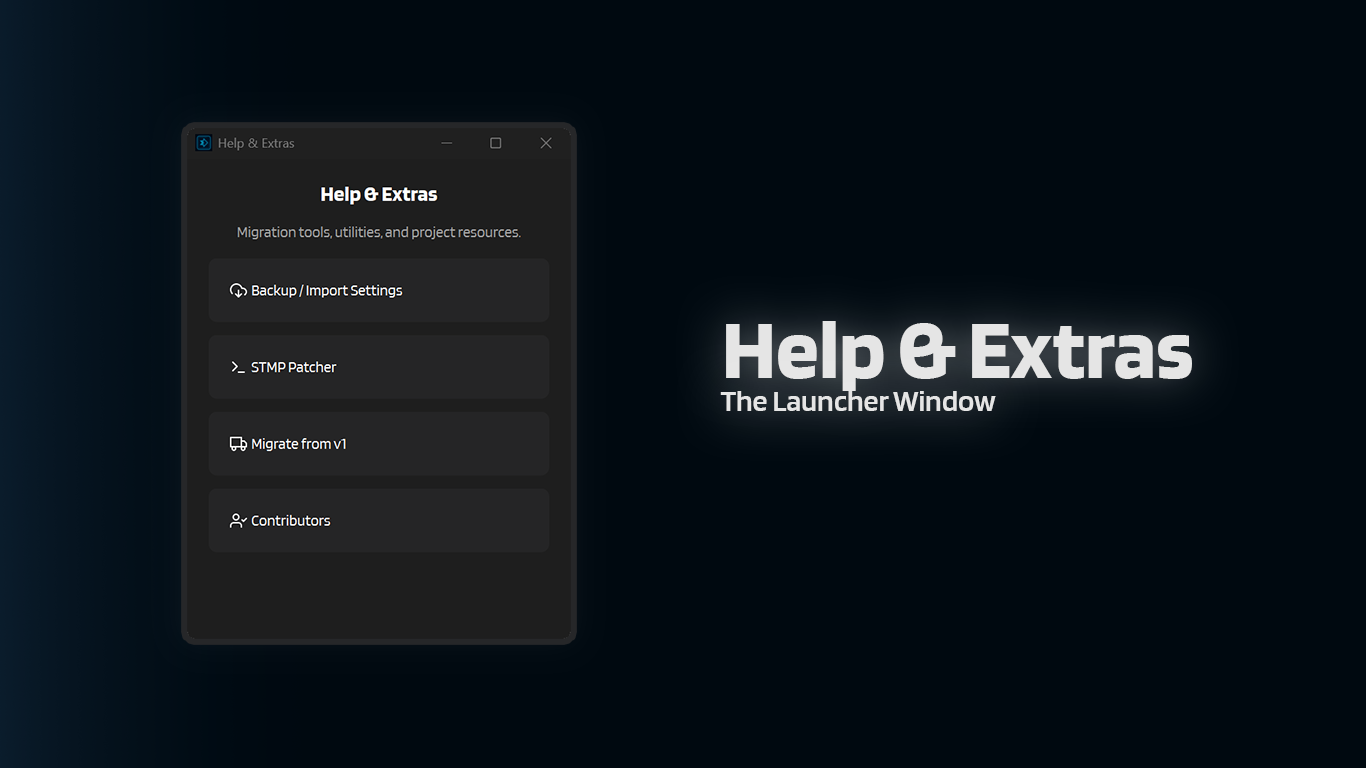
- Click Migrate from v1
- Select your v1 installation root folder
The folder you select must contain:
Optional (if you used a custom formatting template in v1):
No 'save' folder
Do not select the save folder itself. Select the parent folder that contains save.
What The v1 Migrator Copies (And What It Doesn't)
The migrator is best-effort. It migrates the common stuff, but there are important differences you must review manually.
Migrated automatically (best-effort)
- Provider and Login: Sign In Automatically, legacy DeepSeek email/password, and saved account migration
- Provider Behavior (DeepSeek): DeepThink, Send DeepThink, Search, Send As Text File, Reuse Matching Chat
- Formatting:
- Preset mapping (v1 preset names -> v2 preset names)
- v1 Wrapped/XML-like presets now map to Multiline XML-Like in v2
- Attempts to import your custom template if you used Custom
- Imports v1 Injection "system prompt" as v2 Injection content
- Network: Port and API keys (if configured)
- Logging: logfile enabled, max files, max file size (bytes -> KB/MB/GB)
- Console: font size, palette, condump directory
- Saved Sessions: Keep Provider Sessions Signed In (mapped from v1 persistent cookies setting)
Not migrated (or intentionally different)
- Formatting divider (v2 has a dedicated divider setting; v1 did not)
- Name detection behavior toggles (v2 has multiple name sources; defaults are enabled)
- Perfect template parity (the migrator only converts the basic
{name}/{role}/{content}placeholders; you still need to verify the final output)
Mandatory Manual Review
After migration, open v2 Settings and review everything, but do not skip this section.
1) Formatting: v1 vs v2 template structure
This is the big one
v1 and v2 use different template structures. You must review your formatting template after migration.
v1 had two templates:
formatting.user_templateformatting.char_template
v2 uses one template for all roles:
formatting.formatting_template
Also, placeholder syntax changed:
| v1 placeholder | v2 placeholder | Meaning |
|---|---|---|
{name} |
{{name}} |
Display name for the message |
{role} |
{{role}} |
Display role (User, Character, System) |
{content} |
{{content}} |
Message content |
Multi-line templates
In v2 you can use literal \\n sequences in the template (they will be turned into real newlines), or just press Enter in the template box.
2) Injection: placeholders and v1 compatibility
v2 Injection supports simple name placeholders:
| Placeholder | Replaced with |
|---|---|
{{user}} |
Detected user name |
{{char}} |
Detected character name |
It also accepts common v1 placeholders for compatibility:
{username}->{{user}}{asstname}->{{char}}
Still review your injection
The migrator only does a basic placeholder conversion. Make sure the final injected text still makes sense for your prompt style and chosen formatting preset.
Where to review
- Settings → Formatting → Injection (Position + Content)
- Settings → Formatting → Templates (Preset + Template + Divider)
3) API keys: verify your client still authenticates
If you used API keys in v1, confirm:
- Settings → API Server → Security → Require API Keys is set the way you expect
- Your client (e.g. SillyTavern) is sending the key as a Bearer token
4) Persistent Sessions
v2 Persistent Sessions uses a Playwright profile folder under (one folder per provider):
IntenseRP uses the folder for the currently selected Provider.
If your login behavior feels different after migration, review:
- Settings → Provider and Login → Sign-In and Accounts → Sign In Automatically
- Settings → Provider and Login → Saved Sessions → Keep Provider Sessions Signed In
Migrating From IntenseRP API (Manual)
There is no automatic migrator for IntenseRP API configs in v2. The safest path is to configure v2 manually, then copy over the behaviors you care about.
Recommended mapping
- Want the "classic" IR API look? Use:
- Settings → Formatting → Preset → Classic - Name
- If your old prompts used
DATA1/DATA2naming tags, keep them. v2 can still parse them:- Settings → Formatting → Name Behavior → Classic IntenseRP
- If your client can send OpenAI
namefields (or legacyirp-nextfor RossAscends's STMP patcher compat), that is the most reliable path:- Settings → Formatting → Name Behavior → Message Objects
- SillyTavern → User Settings → Character Names Behavior → Message
Client endpoint changes
v2 exposes an OpenAI-compatible API under /v1, for example:
Available models:
Depends on your active provider. v2 uses the same behavior pattern across providers:
| Pattern | Behavior |
|---|---|
<provider>-auto |
Respects your v2 settings |
<provider>-chat |
Forces reasoning/thinking off where the provider allows it |
<provider>-reasoner |
Forces reasoning/thinking on where the provider allows it |
For the old v1/API providers, that means IDs like deepseek-auto, glm-chat, or moonshot-reasoner. Newer providers follow the same pattern.
Troubleshooting
The migrator says it can't find 'save' or config.enc / secret.key
You must select the root v1 install folder, not the save folder itself.
The selected folder must contain:
save/config.encsave/secret.key
Migration succeeded, but my formatting looks wrong
This is the most common issue.
- v1 templates used
{name}/{role}/{content} - v2 templates use
{{name}}/{{role}}/{{content}} - v2 supports
\\nin templates and dividers for newlines
Fix it by reviewing Settings → Formatting → Templates (Preset + Template), and update placeholder syntax.
My injection shows literal {username} or {asstname}
v2 supports {{user}} and {{char}}, and also accepts the v1 placeholders {username} / {asstname}.
If you still see them literally, double-check that:
- Formatting is enabled (or you're looking at the right place in your prompt)
- The Injection content is not being overwritten by a preset/reset
- You're saving settings after editing Injection
My client gets 401 after migration
If API keys are enabled, the client must send:
Authorization: Bearer <your-key>
Re-check Settings → API Server → Security → Require API Keys and the SillyTavern API Key field.