System
This page covers the "maintenance" side of IntenseRP Next v2: where settings live, how to move/backup them, session/profile management, and how updates work.
Where to Find These Settings
These controls are spread across a few of the newer Settings sections:
- Settings → Provider and Login → Saved Sessions (profiles + session cleanup)
- Settings → Browser & Runtime → Browser Environment (locale, optional timezone override, and browser proxy URL)
- Settings → Browser & Runtime → Provider Stability (provider locks + crash warnings)
- Settings → Advanced → Config Storage (config directory location)
- Settings → Interface → Main Window / Updates (queue panel, hotswap button, version checks)
- Settings → Logs and Troubleshooting → Logging Levels (per-target log severity)
Persistent Sessions
Persistent Sessions keeps you logged in between restarts by storing a reusable Playwright browser profile (cookies, local storage, etc.).
Settings → Provider and Login → Saved Sessions → Keep Provider Sessions Signed In
How It Works
When enabled, IntenseRP launches Chromium using a persistent browser context. The profile is stored inside your config directory:
The<provider> is one of deepseek, glm_chat, moonshot_kimi, qwenlm, perplexity, huggingchat, aistudio, or mimo. The <identity> is either a hashed email/username hash (when an account is selected) or manual (when no account is selected).
Next time you start the app, it loads that same profile, so you usually won't see a login page at all.
Best Reliability
Keep Auto Login enabled as a fallback. If your session expires, Persistent Sessions won't help, but Auto Login will still sign you in automatically.
Browser Locale and Timezone
IntenseRP can now nudge provider pages toward a more predictable browser environment at launch time.
Settings → Browser & Runtime → Browser Environment
There are three knobs here:
- Preferred Browser Locale defaults to English (en-US). This uses Playwright's locale emulation, which affects things like
navigator.language, theAccept-Languageheader, and locale-sensitive formatting. - Browser Timezone is optional and defaults to System Default. Right now the built-in override is New York (
America/New_York). - Browser Proxy URL is optional. It routes provider browser contexts through an HTTP, HTTPS, SOCKS4, or SOCKS5 proxy.
This is intentionally a best-effort hint. Locale can help with providers that otherwise open in a non-English UI, especially on fresh sessions. IntenseRP requires the locale to be English for all drivers to work (because of some hooks we rely on), so this can be reasonable to set even if you don't care about the locale itself.
It doesn't guarantee a perfect environment
- Saved site preferences, account preferences, cookies, or local storage can still override it.
- Timezone spoofing only changes what the browser reports. It does not change your IP geolocation, so forcing the wrong timezone can sometimes make a site more suspicious, not less.
Practical recommendation
Keeping the locale on English (en-US) is pretty reasonable for IntenseRP, because all drivers currently expect English UI text anyway. The timezone override is more situational, so it's left off by default.
MiMo regional access
Xiaomi MiMo also has a provider-specific proxy setting under Provider Behavior -> Xiaomi MiMo -> Proxy. Use that if only MiMo needs a permitted network route.
Provider Locks
Provider locks are temporary safety blocks for providers that are implemented, but currently known to fail in a way that makes normal automation misleading or unusable.
Settings -> Browser & Runtime -> Provider Stability -> Ignore Provider Locks
Right now, there is no default provider lock active. Google AI Studio is selectable again because its Humanize Mouse Movements reliability mode is enabled by default.
The override is not a fix
Ignore Provider Locks only skips IntenseRP's safety lock if a future temporary lock is added. It does not make a provider more automation-friendly. Use it only when you are sure your setup can send messages from that provider without issues.
Delete Profile
If the saved session gets weird (stuck login, expired cookies, endless redirects), Delete Profile lets you remove a specific saved browser profile so you can start fresh.
Settings → Provider and Login → Saved Sessions → Delete Profile
What this does:
- Lets you pick a profile from a dropdown:
[Legacy] <Provider>[Account] <Provider> - <email>- Deletes the selected profile folder under
[config_dir]/playwright_profiles/ - Logs you out (cookies/local storage are removed)
- Forces a fresh login on next start
This can't be undone
Deleting a profile wipes the saved session data. If you don't have Auto Login enabled, you'll need to log in manually next time.
Clear All Profiles
If you want a full reset, Clear All Profiles deletes all saved browser profiles (Legacy and Accounts).
Settings → Provider and Login → Saved Sessions → Clear All Profiles
What this does:
- Deletes
[config_dir]/playwright_profiles/ - Logs you out of all providers and saved accounts
- Forces a fresh login on next start
This can't be undone
This is a fresh start for Persistent Sessions. If you don't have Auto Login enabled, you'll need to log in manually next time.
Where Settings Live
IntenseRP stores all the important local stuff in a single config directory, including:
settings.json.enc- your settings (encrypted at rest)settings.key- the encryption key used to read/write settingsappflags.json.enc- hidden persistent app flags (encrypted at rest)accounts/- saved accounts + usage data (encrypted at rest)playwright_profiles/- browser profiles (Persistent Sessions)
What is [config_dir] exactly?
[config_dir] is whatever directory IntenseRP is currently using as its config root. You can change it via Config Storage Location (below).
If you want to see the exact active path on disk:
- Open the folder where the app executable is located
- Find
config_dir.txt - Open it with Notepad / any text editor
That file contains the active config directory path.
Security Reality Check
The settings file is encrypted, but the key (settings.key) lives right next to it. This protects against casual snooping, but it's not meant as strong protection if someone has access to your files. Treat your config directory as sensitive.
Config Storage Location Presets
Settings → Advanced → Config Storage → Config Storage Location
This dropdown controls where IntenseRP stores config_data (settings, keys, profiles).
| Preset | Typical path | Best for |
|---|---|---|
| Relative | Next to the app (<app-folder>/config_data/) |
Portable installs, USB drives, keep everything in one folder |
| Windows AppData | %APPDATA%\\IntenseRP Next\\config_data\\ |
Standard Windows installs, backups via user profile |
| Linux User Data | $XDG_DATA_HOME/IntenseRP Next/config_data/ (or ~/.local/share/...) |
Standard Linux installs |
| Custom | You choose | Advanced layouts (separate drive, synced folder, etc.) |
OS-specific options
You'll only see Windows AppData on Windows, and Linux User Data on Linux.
Migrating Config Storage
Changing config storage is a little more involved, because IntenseRP needs to move your existing settings/profile to the new location, but luckily it can do that for you automatically.
Steps
- Go to Settings → Advanced
- Under Config Storage, choose a new Config Storage Location
- If you pick Custom, set Custom Config Directory
- Click Save
- Confirm the migration prompt
After a successful migration, IntenseRP restarts automatically.
Important safety behavior
During migration, IntenseRP will:
- Copy the entire current config directory to the new location
- Refuse "dangerous" targets (overlapping folders, filesystem roots, app folder, etc.)
- Refuse non-empty target folders that don't look like an IntenseRP config directory
- Replace the destination contents when it's allowed to proceed
Pick a dedicated folder
If you use Custom, point it to an empty folder (or a folder that already contains an IntenseRP config). Don't point it at "Documents", "Desktop", or any folder with unrelated files.
Backup & Restore
IntenseRP Next v2 includes a built-in backup/import tool that packages your active config directory into a .zip.
In-app backup/import (recommended)
- Open Help (main window) -> Backup / Import Settings
- Click Backup to .zip and choose a save location
- To restore, click Import from .zip and select your backup zip
After backup/import, settings reload automatically. A complete import replaces the contents of your active [config_dir].
If the backup is missing an optional selected category, such as Profiles or Credentials, IntenseRP imports the data it found and leaves that missing local category alone.
Import overwrites your current config
A complete import replaces your active config directory contents. Create a backup zip first if you want an easy rollback.
Stop services for reliable imports
If Persistent Sessions are enabled and the browser is running, profile files can be in use. Click Stop in the main window before importing.
Portable Backups
If you use Relative, you can usually back up by copying the whole app folder. config_data/ lives inside it.
Manual backup (advanced)
- Close IntenseRP
- Copy your entire
[config_dir]/somewhere safe
That backup includes your settings, API keys, and (if enabled) your persistent browser profile.
Manual restore (advanced)
- Close IntenseRP
- Replace the contents of your active
[config_dir]/with the backup
Request Queue Preview
If you have requests piling up or taking a while, this panel can help you see what's going on.
Settings → Interface → Main Window → Show the Request Queue Panel
For what it shows (and why requests queue in the first place), see API Behavior.
It also includes 2 quick actions at the bottom:
- Stop (square) - abort the current request and disconnect the client
- Clear Queue (trash) - cancel everything queued after the current request
Logging Levels
Also under Logs and Troubleshooting, you can set a minimum severity threshold for each logging target (Terminal, Console Window, Activity Log, Logfiles) independently.
Settings → Logs and Troubleshooting → Logging Levels
For full details and the severity order, see Console & Logging - Logging Levels.
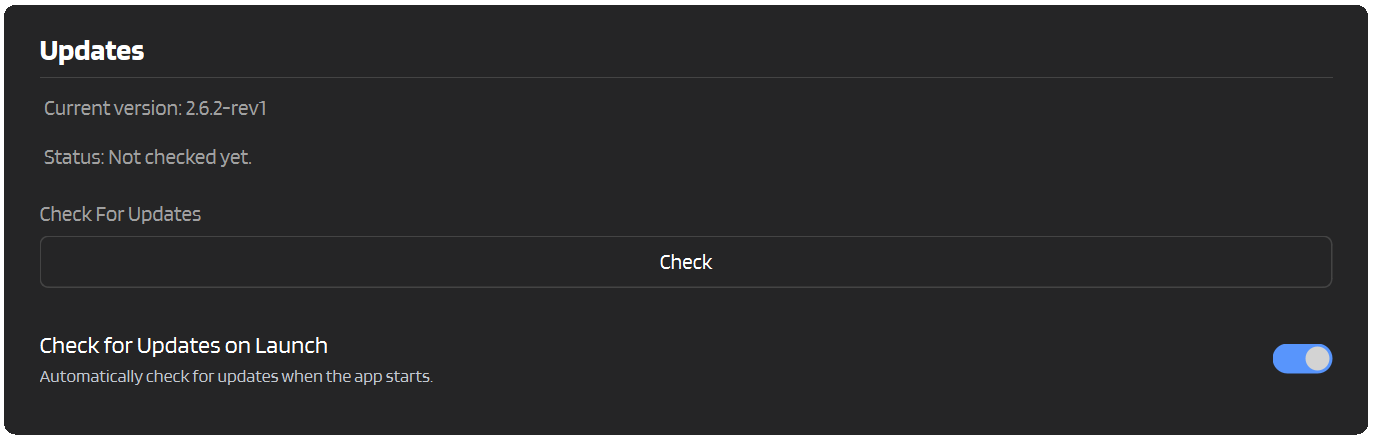
Updates
Settings → Interface → Updates
How the update check works
When you check for updates, IntenseRP downloads the latest version.json from GitHub.
version.json is a JSON object with these keys:
version- SemVer-style version stringaua- whether the update is auto-updateable (true/false)severity- 1-4 (optional,normal,important,critical)pu- post-update button mode:survey,discord, ornonepufref- optional post-update helper action used by the app after the dialog closessummary- optional short summary shown in the "Update Installed" dialog
IntenseRP compares only version to decide if an update is available. aua can disable Auto-Update for specific releases. pu only affects the button shown after the updated app starts, and summary only adds a little context to that post-update dialog.
For the project's same-version hotfix tags, the checker treats the suffixes as release steps in this order: plain release -> -update/-major -> -patch -> -revN.
Requires internet access
If GitHub is blocked (network restrictions, firewall, captive portal), update checks will fail.
If an update is available
You'll get an "Update Available" dialog and can choose a method based on how you installed the app:
- Auto-Update - available only in packaged builds on Windows/Linux
- Git - available only when running from source (a git checkout)
- Downloads the release archive
- Stages an update payload
- Runs a small updater and restarts the app
By default, Auto-Update keeps your existing config_data/ and logs/ as whole local folders instead of copying them from the old app folder into the new one. The updater also removes those folder names from the staged update payload if they somehow appear there, so a release package can't replace your local config or logs by accident.
If you need the older behavior for troubleshooting, enable Use Legacy Update Data Restore in the Updates settings. That mode copies/merges config_data/ and logs/ from the old app backup into the new install, which is slower for large browser profiles.
Not available on source runs
If you're running python main.py, Auto-Update is disabled.
Close the app, then update from your repo folder:
git pull
# NOTE: If you use a virtual environment, activate it first
source venv/bin/activate
# END NOTE
pip install -r requirements.txt
python main.py
Not available in the .exe/.zip build
Packaged builds don't include a git checkout, so Git updating is disabled there.
Debug: --fakeUpdate
You can force-show the "Update Installed" dialog (without actually installing an update) by launching IntenseRP with:
Debug: --localUpdateDebug
You can force-show a white "Debug Update Available" dialog and run Auto-Update from a local build artifact:
The argument must point to a .zip release package, like the one created by scripts/build_windows.ps1. The archive still needs the normal release layout, including the app folder and optional/updater.exe.
This really runs the updater
This is for testing updater weirdness before release, but it isn't a dry run. If you click through the install flow, it will stage that ZIP and update the current packaged install.
Older artifacts can behave oddly
The updater executable is loaded from the staged ZIP. If you test with an older artifact, that older optional/updater.exe may not understand the launch arguments used by your current app build.
Troubleshooting
More issues?
See Troubleshooting for a broader checklist (network, auth, provider issues, and bug report info).
Persistent Sessions is enabled, but I still get logged out
Provider sessions can expire. If it happens frequently:
- Enable Sign In Automatically as a fallback ( Settings → Provider and Login → Sign-In and Accounts)
- Use Delete Profile (or Clear All Profiles) if the stored profile is corrupted or stuck
Config migration failed / was refused
Common reasons:
- The target folder is not empty and doesn't look like an IntenseRP config directory
- The target is a filesystem root (e.g.
C:\\,/) - The target overlaps the current config directory
- The target contains (or is) the app folder
Fix:
- Choose a new empty folder for Custom
- Or choose Relative / AppData / Linux User Data
After changing Config Storage Location, my settings look reset
That usually means IntenseRP is now pointing at a new (empty) config directory.
- Check
config_dir.txtto confirm the active path - Switch back to the previous config storage location
- Or restore your backup into the active
[config_dir]
Update checks always fail
- Make sure you have internet access
- Check that GitHub isn't blocked by your network/firewall
- Try again later (GitHub can rate-limit or temporarily error)
Quick Reference
| Item | Where it lives |
|---|---|
| Active config directory pointer | <app-folder>/config_dir.txt |
| Encrypted settings file | [config_dir]/settings.json.enc |
| Settings encryption key | [config_dir]/settings.key |
| Encrypted app flags file | [config_dir]/appflags.json.enc |
| Persistent browser profile | [config_dir]/playwright_profiles/accounts/<provider>/<identity>/ |