Network & API
Configure how IntenseRP listens for incoming requests from SillyTavern and other clients. These settings control the port, network accessibility, and authentication.
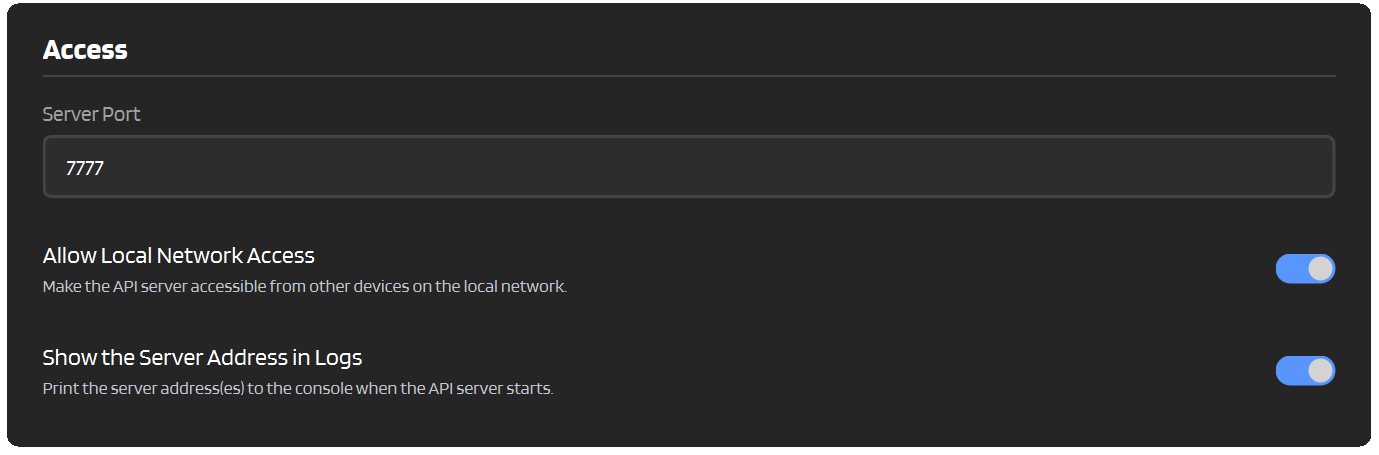
Server Port
The port number where IntenseRP's API server listens for requests. Default is 7777.
Settings → API Server → Access → Server Port
Changing the Port
If port 7777 is already in use by another application, just pick a different one. Common alternatives are 8080, 3000, or any number between 1024 and 65535.
Update SillyTavern Too
If you change the port here, don't forget to update your SillyTavern endpoint to match:
Allow Local Network Access
By default, IntenseRP only accepts connections from your own computer (localhost / 127.0.0.1). Enable LAN availability to let other devices on your network connect.
Settings → API Server → Access → Allow Local Network Access
When to Use This
- Running SillyTavern on a different machine (like a phone or tablet)
- Sharing your IntenseRP instance with others on your home network
- Using a remote desktop or VM setup
How It Works
| Setting | Server Binds To | Who Can Connect |
|---|---|---|
| Off (default) | 127.0.0.1 |
Only this computer |
| On | 0.0.0.0 |
Any device on your network |
Finding Your IP
To connect from another device, you'll need your computer's local IP address. On most networks this looks like 192.168.x.x or 10.x.x.x.
Show the Server Address in Logs
If Show the Server Address in Logs is enabled (see below), IntenseRP automatically logs all server addresses to the console when it starts - including your LAN IP. No need to run ipconfig or ip addr.
Then use that IP in your client's endpoint:
Security Note
Enabling LAN access means anyone on your local network could potentially use your IntenseRP instance. Consider enabling API keys (below) if you're on a shared network.
Show the Server Address in Logs
When enabled, IntenseRP prints the server address(es) to the console each time the API server starts. This is on by default.
Settings → API Server → Access → Show the Server Address in Logs
With Allow Local Network Access off, you'll see:
With Allow Local Network Access on, all detected local IPv4 addresses are printed as well:
Disable this if you'd rather not have the address logged on every start.
Dry Run Mode
Dry Run Mode starts the API server without opening a provider browser. It's for checking what your client is actually sending before IntenseRP tries to drive a provider page.
Settings → API Server → Dry Run → Dry Run Mode
When you start services with this enabled, IntenseRP opens the Dry Run Display right away. It waits for a request, then shows:
- The raw request JSON exactly as the client sent it
- The formatted generation text produced by IntenseRP's normal formatting pipeline
The request is not sent anywhere. Instead, the API returns HTTP 418 I'm a teapot with a message saying Dry Run captured the request and it's inspectable in the display window. New incoming requests replace the current capture, and the copy buttons let you grab either the raw JSON or the formatted text.
Launch-time setting
Dry Run Mode applies when services start. If a provider browser is already running, stop services first, then start again with Dry Run Mode enabled.
Parallelization is ignored here
Dry Run Mode always runs as a single API capture path. Providers in Parallel, concurrent request queues, and full parallel lanes are not launched or used.
Closing the Dry Run Display also stops the API server, since there is no provider browser to keep alive.
API Reasoning Effort
OpenAI-compatible clients can send a per-request reasoning effort. This is disabled by default:
Settings -> API Server -> Request Controls -> Accept API Reasoning Effort
IntenseRP accepts either top-level reasoning_effort or nested reasoning.effort. The top-level value wins if both are present.
When this is enabled, use Reasoning Effort Providers to choose which providers honor the request field. For selected providers, the request's effort takes priority over the reasoning part of the model ID. Providers left unchecked ignore reasoning_effort and keep using the model ID suffix, Provider Behavior settings, or loadout values.
AI Studio and GLM-5.2 benefit most here
AI Studio has a built-in Thinking Level control, and GLM-5.2 has a Deep Think effort menu. For most other providers, the API effort is just a toggle that turns reasoning on or off based on the value sent.
For most providers, this is mapped to the existing on/off reasoning controls:
| API effort | Result |
|---|---|
Not sent, auto, minimum, minimal, low |
Reasoning off |
medium, high, max, xhigh, and similar higher values |
Reasoning on |
Google AI Studio is more granular: minimum/minimal, low, medium, and high map to AI Studio's Thinking Level controls instead. Very high values like max and xhigh are rounded to High.
GLM-5.2 is the GLM special case: medium and high select High, while max and xhigh select Max. Disabled and low-effort values still turn Deep Think off.
Gemini 2.5 in AI Studio
Gemini 2.5 models are paid in Google AI Studio now, so IntenseRP rejects AI Studio requests that resolve to Gemini 2.5 unless Assume Paid Model Access is enabled for the active AI Studio account.
Disable this setting, or remove a provider from Reasoning Effort Providers, if you want API model IDs, Provider Behavior settings, and AI Studio macros to be the only things that control reasoning.
Require API Keys
Add an extra layer of security by requiring an API key for all incoming requests. When enabled, clients must include a valid key in the Authorization header.
Settings → API Server → Security → Require API Keys
Setting Up API Keys
- Toggle on Require API Keys
-
Add one or more key pairs:
- Name: A label to identify this key (e.g., "SillyTavern", "Phone", "Laptop")
- Key: The actual secret value (make it long and random!)
-
Save your settings
Using Keys in SillyTavern
In SillyTavern's API connection settings, enter your key in the API Key field. SillyTavern will automatically send it as a Bearer token:
How Authentication Works
When a request comes in:
- IntenseRP checks if API keys are enabled
- If yes, it looks for an
Authorization: Bearer xxxheader - It compares the token against your saved keys
- If there's a match, the request proceeds (and the key name is logged)
- If not, the request is rejected with a 401 error
Multiple Keys
You can create multiple keys - one for each device or person. This makes it easy to revoke access for a specific client without affecting others.
API Endpoints
IntenseRP exposes an OpenAI-compatible API. Here are the available endpoints:
| Endpoint | Method | Description |
|---|---|---|
/v1/models |
GET | List available models |
/v1/chat/completions |
POST | Generate a chat completion |
/v1/completions |
POST | Generate a text completion from a raw prompt |
/v1/completions is the legacy prompt-based route. Unlike chat completions, it sends your prompt as-is after macro stripping, so chat templates, injections, and name scanning are skipped on purpose.
Available Models
In normal single-provider mode, /v1/models follows the active provider by default.
If you enable Use Universal Model Names in Settings -> API Server -> Model IDs, /v1/models returns these instead:
| Model ID | Behavior |
|---|---|
intenserp-auto |
Uses your current provider settings |
intenserp-reasoner |
Forces thinking/reasoning on |
intenserp-chat |
Forces thinking/reasoning off |
Provider-specific behavior IDs still work either way. In Providers in Parallel, intenserp-* stays invalid, but UMM real-model IDs can appear when this setting is enabled.
The intenserp-* and provider-prefixed IDs are behavior presets (modes), not true model selection. For GLM Chat, Google AI Studio, QwenLM, Perplexity, HuggingChat, and Xiaomi MiMo, Universal Model Names also exposes real model IDs that override the provider UI model for that request. They are lowercase, with spaces and dots converted to -, and use the same -auto, -reasoner, and -chat suffixes.
When Providers in Parallel exposes real-model IDs, only exact conflicts get provider prefixes so they can route cleanly. For example, Google AI Studio's Gemini 3.1 Pro can appear as aistudio-gemini-3-1-pro-reasoner if another active provider also exposes gemini-3-1-pro-reasoner.
Want the short version?
There is a tiny dedicated page for this here: Universal Model Names
| Model ID | Behavior |
|---|---|
deepseek-auto |
Uses your IntenseRP settings |
deepseek-chat |
Forces DeepThink off |
deepseek-reasoner |
Forces DeepThink on |
| Model ID | Behavior |
|---|---|
glm-auto |
Uses your IntenseRP settings |
glm-chat |
Forces Deep Think off |
glm-reasoner |
Forces Deep Think on |
| Model ID | Behavior |
|---|---|
moonshot-auto |
Uses your IntenseRP settings |
moonshot-chat |
Forces Thinking off |
moonshot-reasoner |
Forces Thinking on |
| Model ID | Behavior |
|---|---|
qwen-auto |
Uses your IntenseRP settings |
qwen-chat |
Forces Thinking off |
qwen-reasoner |
Forces Thinking on |
| Model ID | Behavior |
|---|---|
perplexity-auto |
Uses your IntenseRP settings |
perplexity-chat |
Forces Thinking off |
perplexity-reasoner |
Forces Thinking on when available |
| Model ID | Behavior |
|---|---|
huggingchat-auto |
Uses your IntenseRP settings |
huggingchat-chat |
Forces Thinking off |
huggingchat-reasoner |
Forces Thinking on when available |
HuggingChat requests can also pass inference_provider, huggingchat_inference_provider, or huggingchat_thinking_effort for request-level HuggingChat-only controls.
| Model ID | Behavior |
|---|---|
aistudio-auto |
Uses your IntenseRP settings |
aistudio-chat |
Suppresses <think> output and lowers Thinking Level on supported AI Studio models |
aistudio-reasoner |
Uses your configured Thinking Level and Send Thinking setting |
Requests that resolve to Gemini 2.5 require Assume Paid Model Access, because those models have become paid in AI Studio. A paid AI Studio API key is still better used with the actual AI Studio API instead of IRP.
| Model ID | Behavior |
|---|---|
mimo-auto |
Uses your MiMo Behavior settings |
mimo-chat |
Filters MiMo <think> output |
mimo-reasoner |
Forwards MiMo <think> output |
With Use Universal Model Names enabled, MiMo's real web UI models can also appear as IDs such as mimo-v2-5-pro-auto and mimo-v2-5-reasoner.
Quick FAQ
What port should I use?
Any port between 1024-65535 that isn't already in use. The default 7777 works for most people. Avoid well-known ports like 80, 443, 8080 unless you know what you're doing.
Can I access IntenseRP from the internet?
Not recommended! IntenseRP is designed for local/LAN use. Exposing it to the internet would require port forwarding and proper security measures. If you really need remote access, consider a VPN instead.
My client can't connect on LAN?
Check that:
- Allow Local Network Access is enabled
- Your firewall allows connections on the port
- You're using the correct local IP (not
localhost) - Both devices are on the same network
How do I generate a good API key?
Use any password generator or run this in a terminal:
Or just mash your keyboard - as long as it's long and random!
Need deeper API details?
See API Behavior for request flow, streaming, cancellation, and queueing.